TIMESHARE PLAYBOOK
Finding & Holding Your Rental Inventory
A step-by-step walkthrough: from searching your points reservation to checking real market rental prices before you commit.
TIMESHARE PLAYBOOK
Two Tabs, Two Jobs
This walkthrough runs in two parts, back to back in your browser.
PART 1
Find Your Inventory
On the Marriott site: search your resort, narrow to a strong check-in date, and place a temporary hold — before you spend a single point.
Steps 1–6
PART 2
Research the Market
On RedWeek: look up what owners are actually charging for the same resort, dates, and unit — so you know your number before you list.
Steps 7–12
TIMESHARE PLAYBOOK
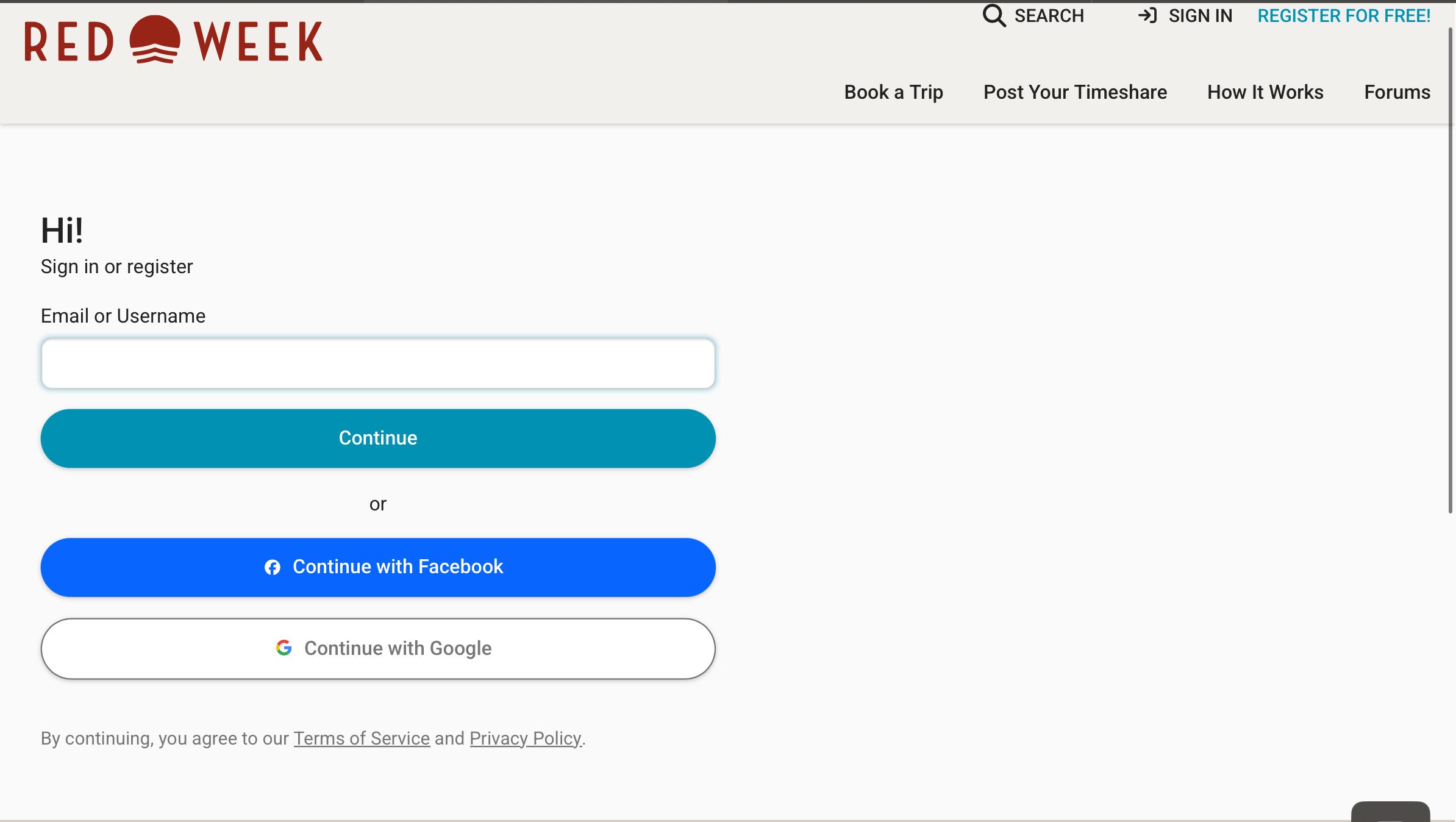
Log in to both accounts side by side — you'll move back and forth between them through this entire process.
TIMESHARE PLAYBOOK
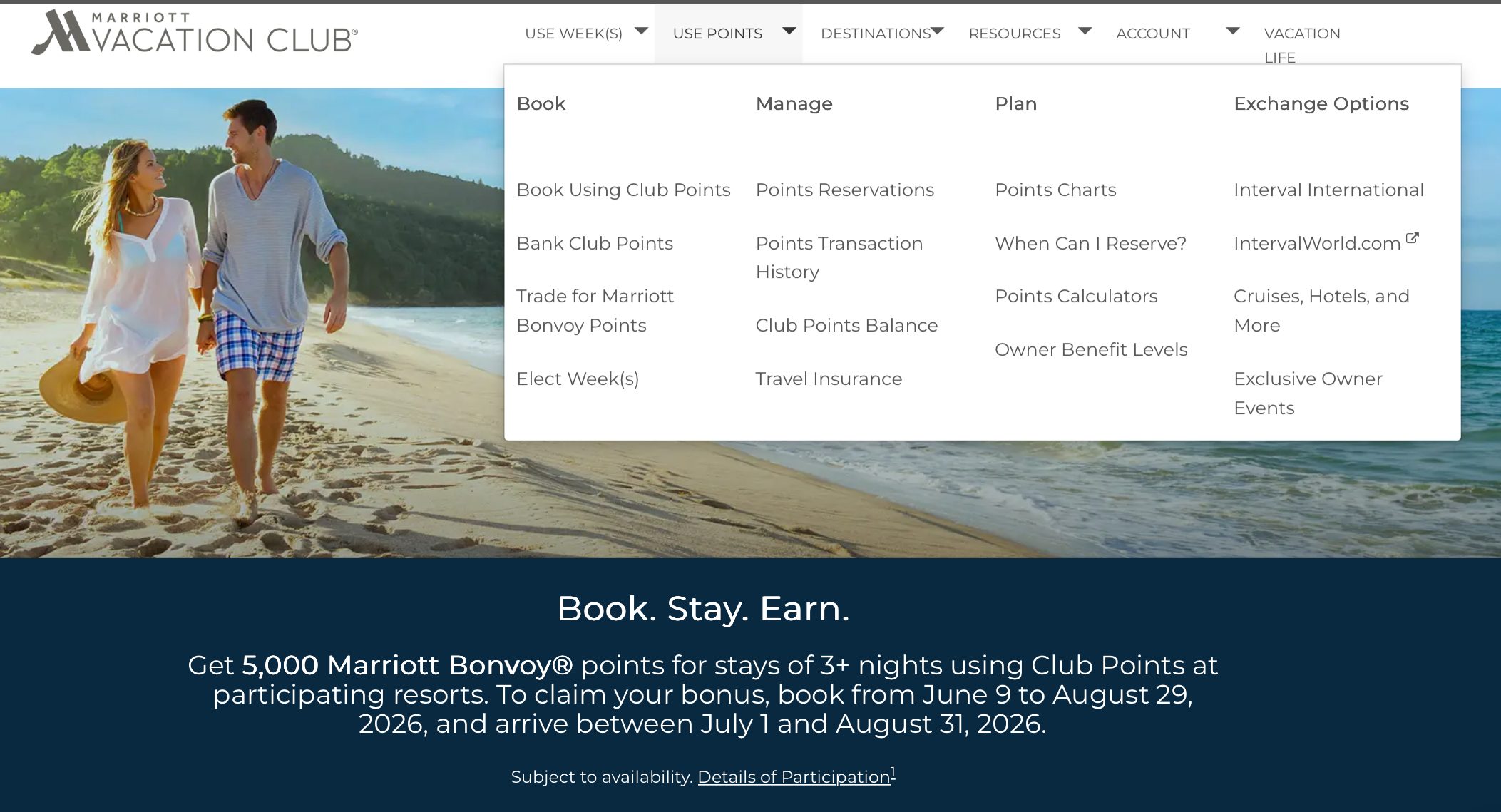
On the Marriott site, open the "Use Points" menu in the top navigation and select "Book Using Club Points."
WHY IT MATTERS
This is the same menu you'd use to book your own stay — you're just using it to check what's bookable, not to travel yourself.
TIMESHARE PLAYBOOK
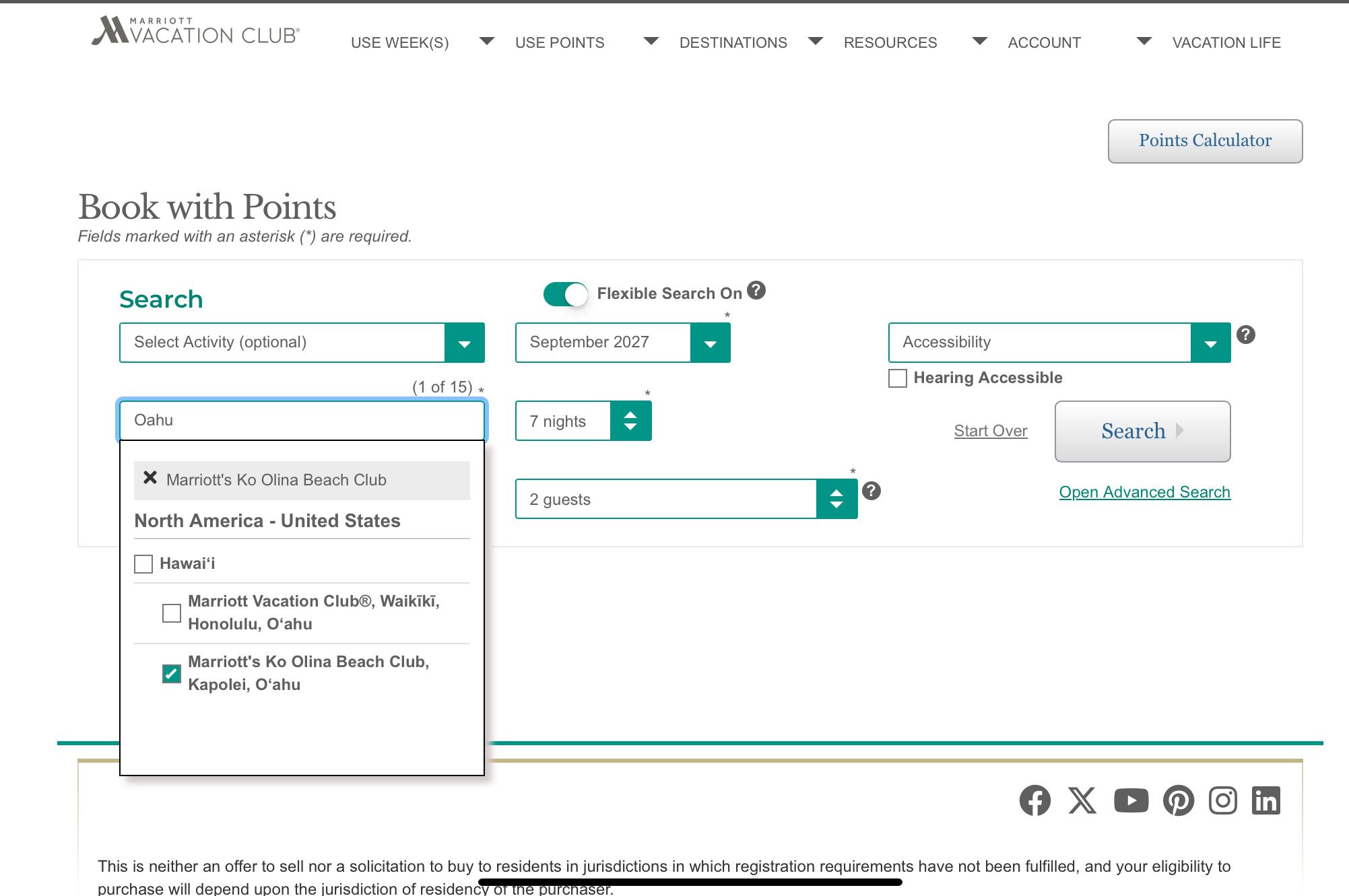
Search your property (here, Ko Olina), for 2 guests, 7 nights, roughly 12–13 months out. Hit Search.
WHY IT MATTERS
Searching this far out gives you access to the widest inventory before other owners lock in the best dates.
TIMESHARE PLAYBOOK
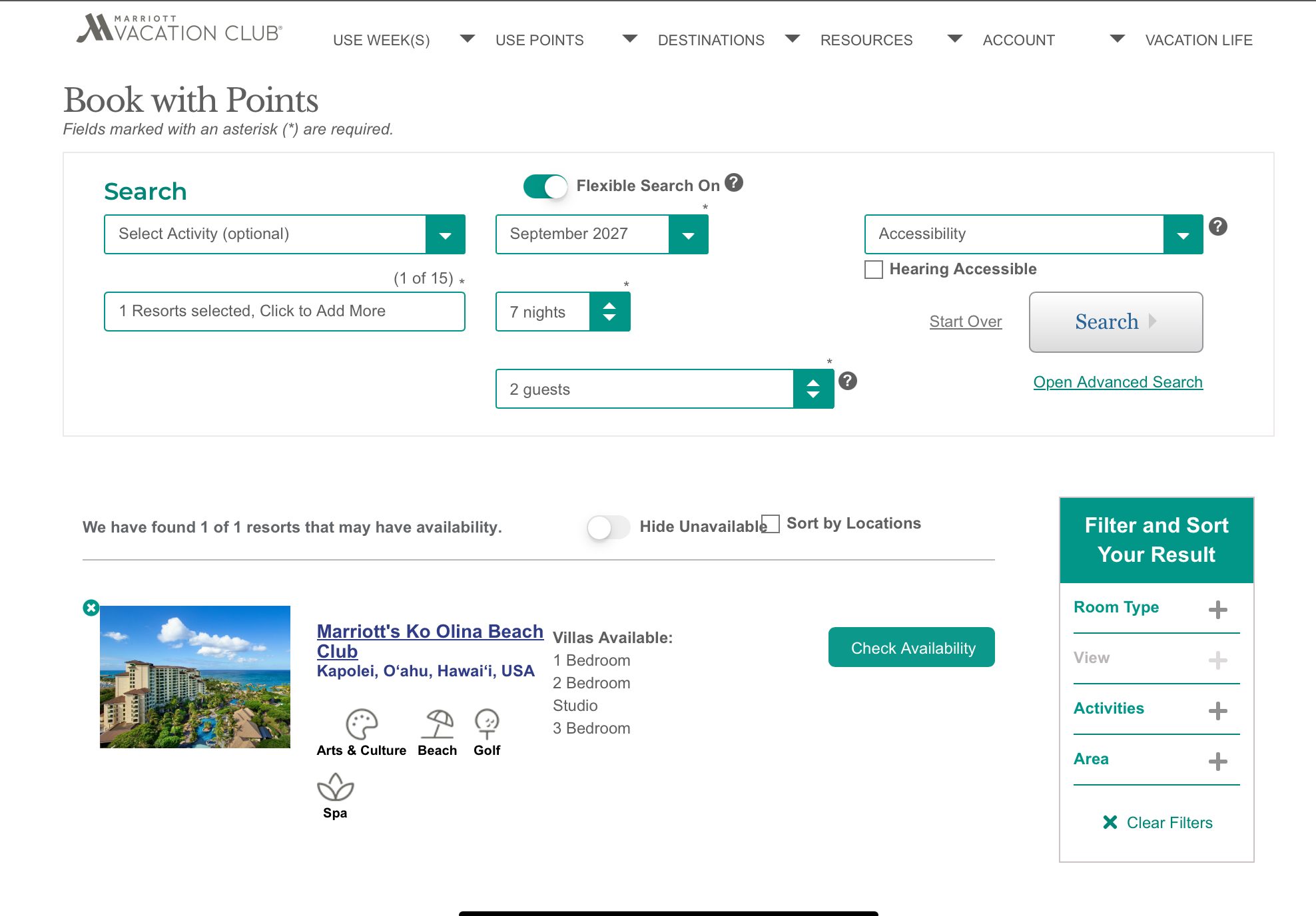
From the results, click "Check Availability" on your resort to open the calendar.
WHY IT MATTERS
You're confirming the resort actually has open inventory in your window before you go any further.
TIMESHARE PLAYBOOK
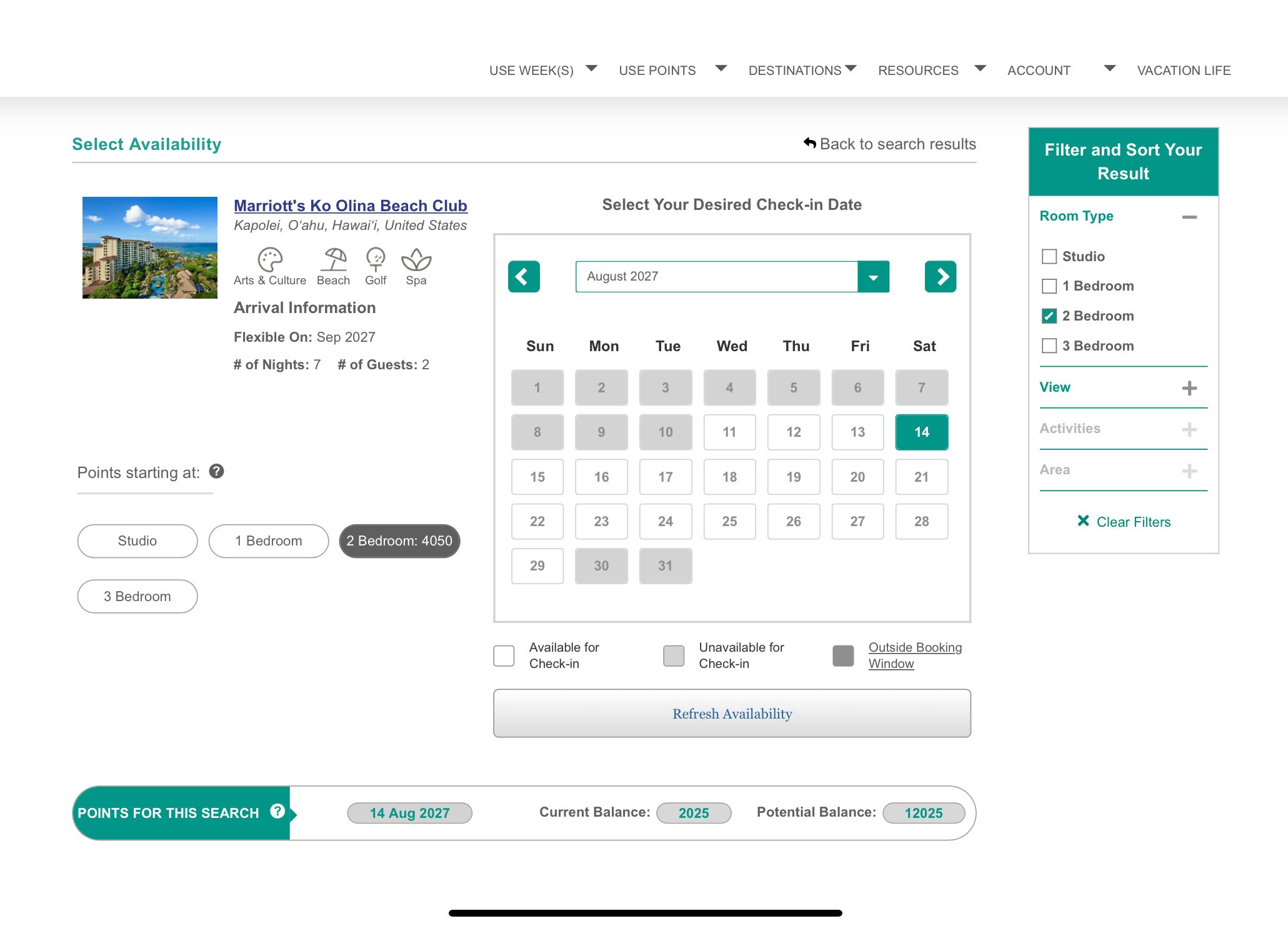
Filter to 2-bedroom units only, and choose a Friday, Saturday, or Sunday check-in — the dates renters want most.
WHY IT MATTERS
Weekend check-ins rent faster and command a stronger price than mid-week arrivals.
TIMESHARE PLAYBOOK
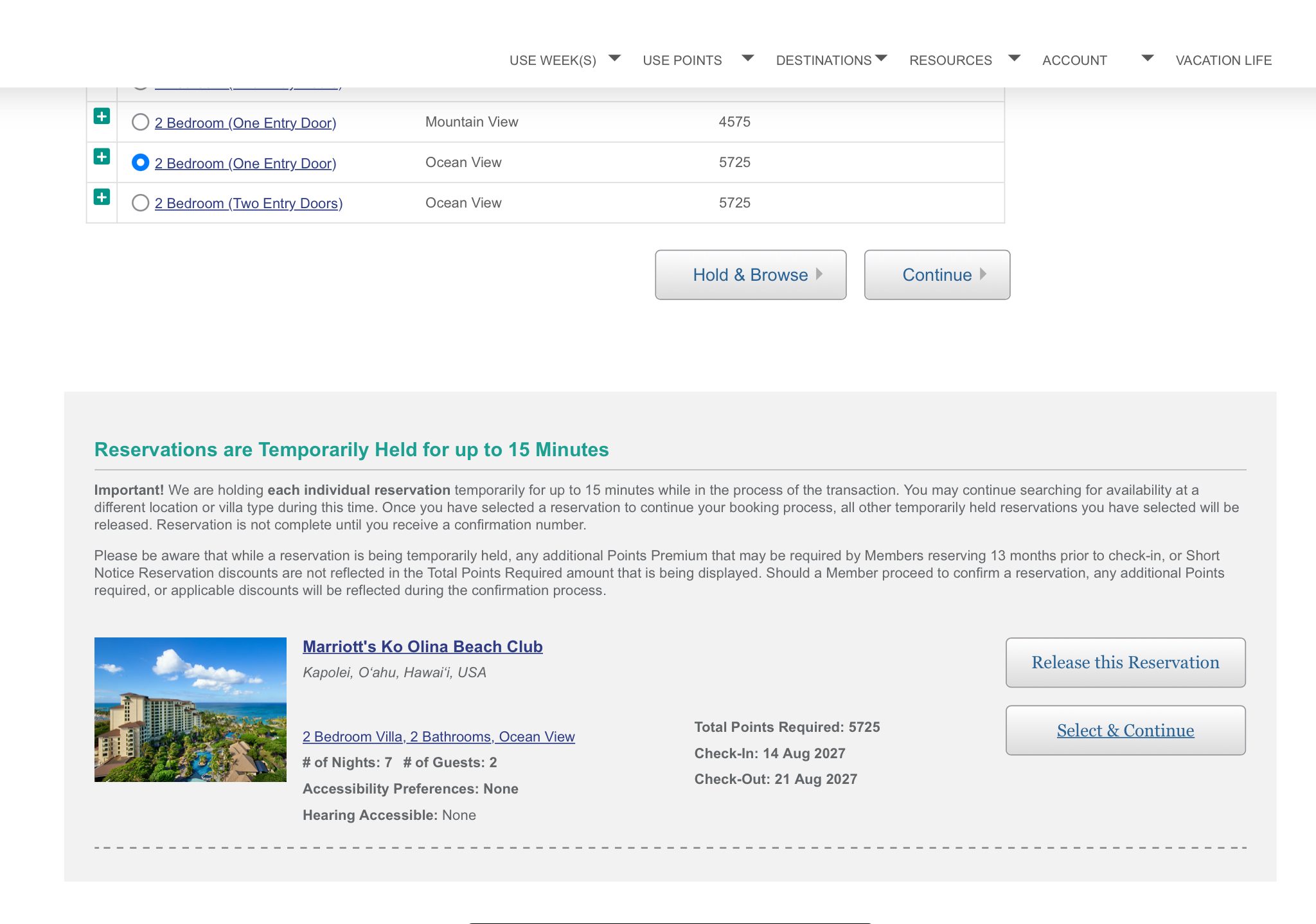
Select the 2-bedroom unit and click "Hold & Browse." Marriott holds it for 15 minutes — no points spent yet.
THE 15-MINUTE HOLD PLAY
This hold is the whole point of this tutorial: it lets you check real demand before you commit your points to a reservation. Nothing is booked yet.
TIMESHARE PLAYBOOK
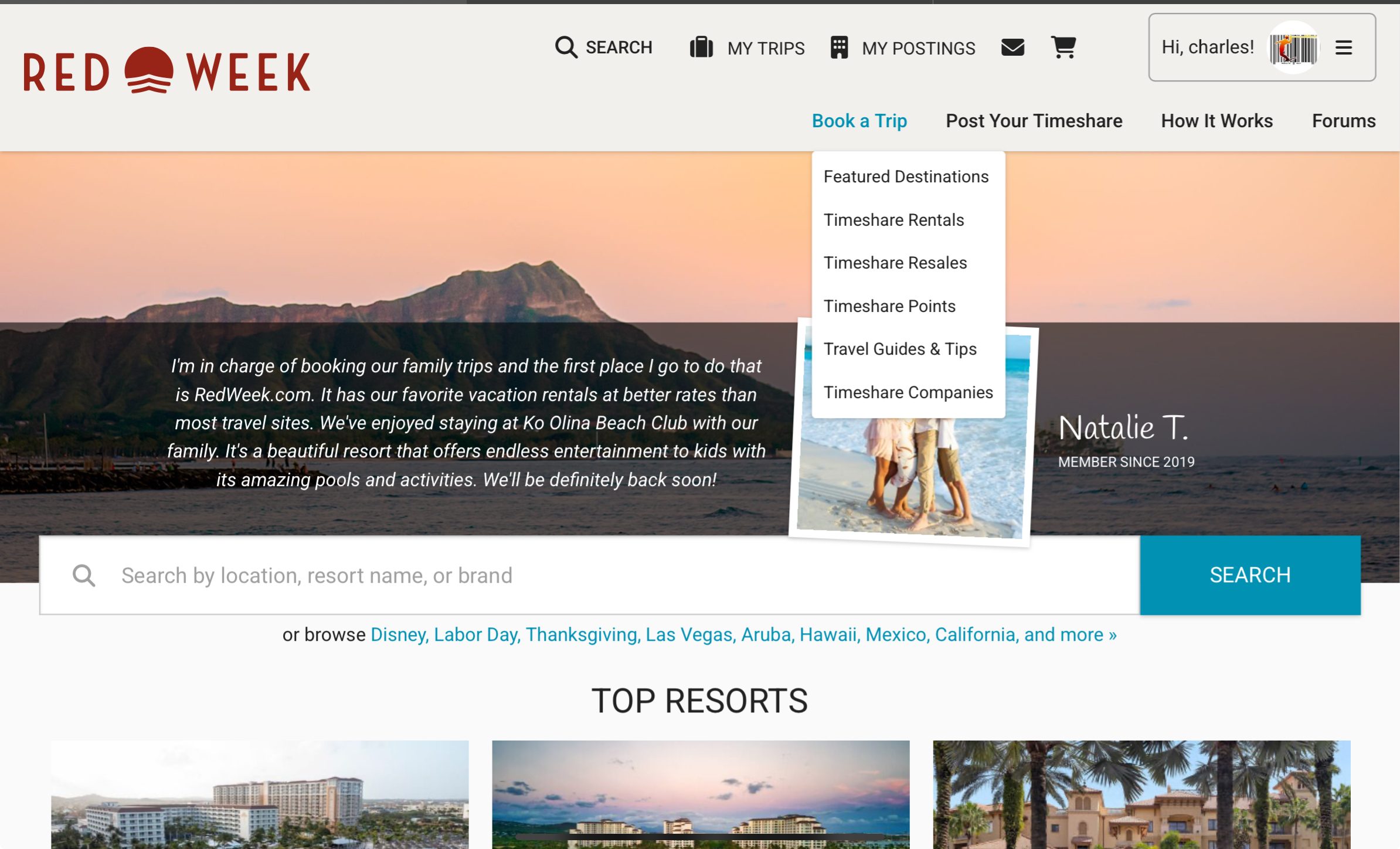
Switch to your RedWeek tab. Open the "Book a Trip" menu and select "Timeshare Rentals."
WHY IT MATTERS
This is where you'll see what real renters are paying right now — not list prices, actual live listings.
TIMESHARE PLAYBOOK
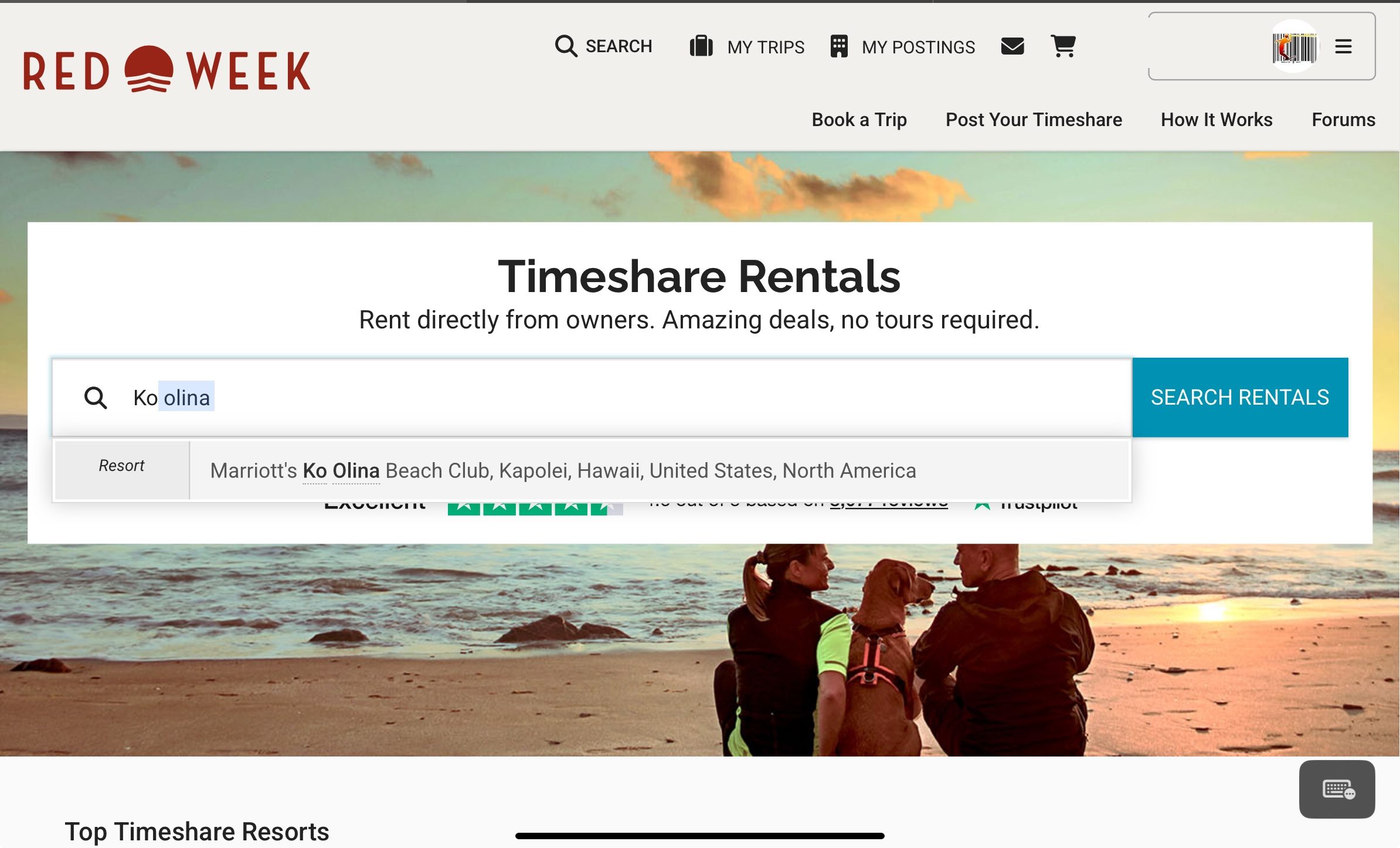
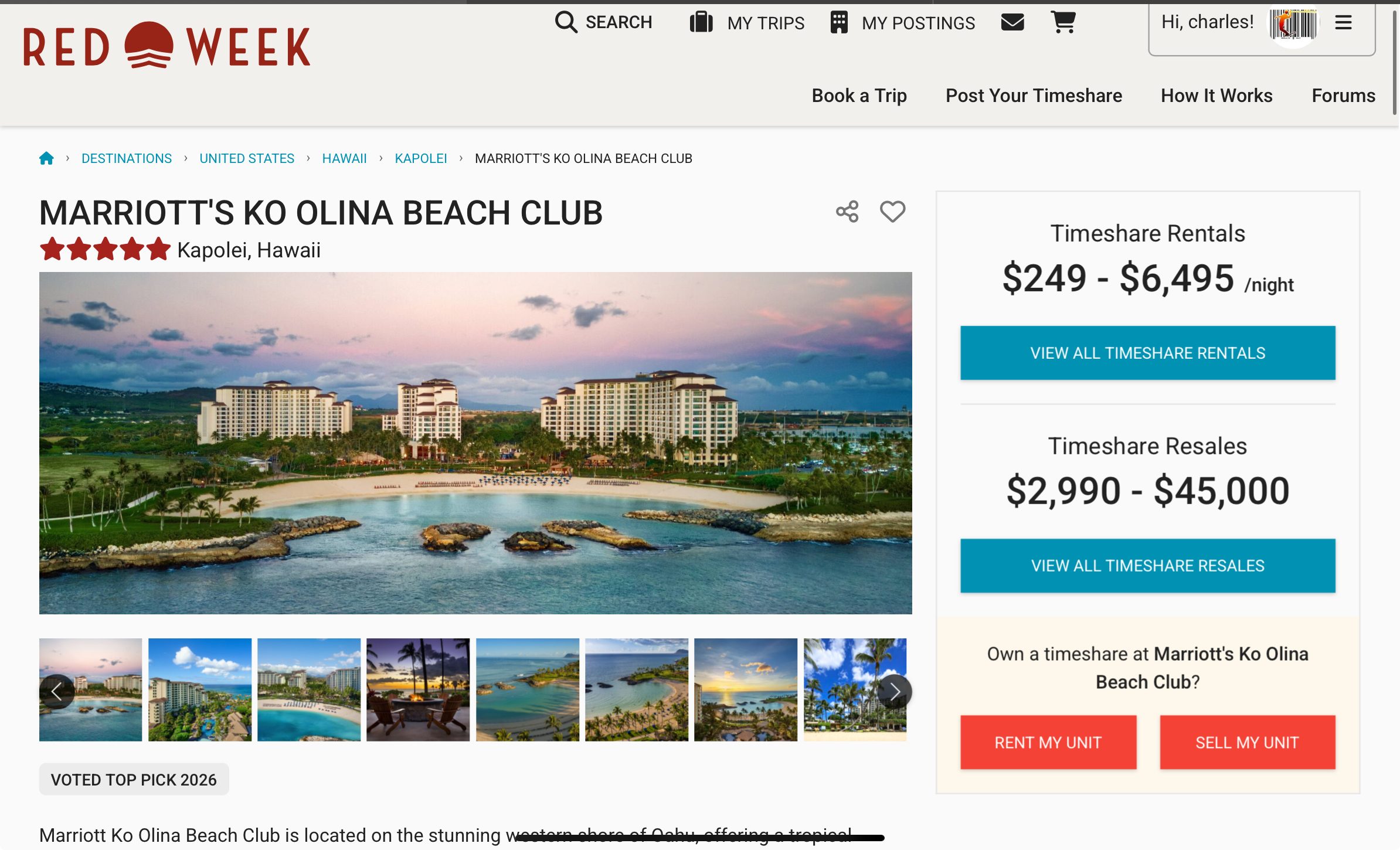
Search for your property (e.g. "Ko Olina") and select it from the dropdown.
WHY IT MATTERS
Same resort you just held on Marriott — you're about to compare it against the open market.
TIMESHARE PLAYBOOK
Click "View All Timeshare Rentals" to see what other owners are currently charging for this resort.
WHY IT MATTERS
The listed range gives you a first read on the market — you'll narrow it down to your exact dates next.
TIMESHARE PLAYBOOK
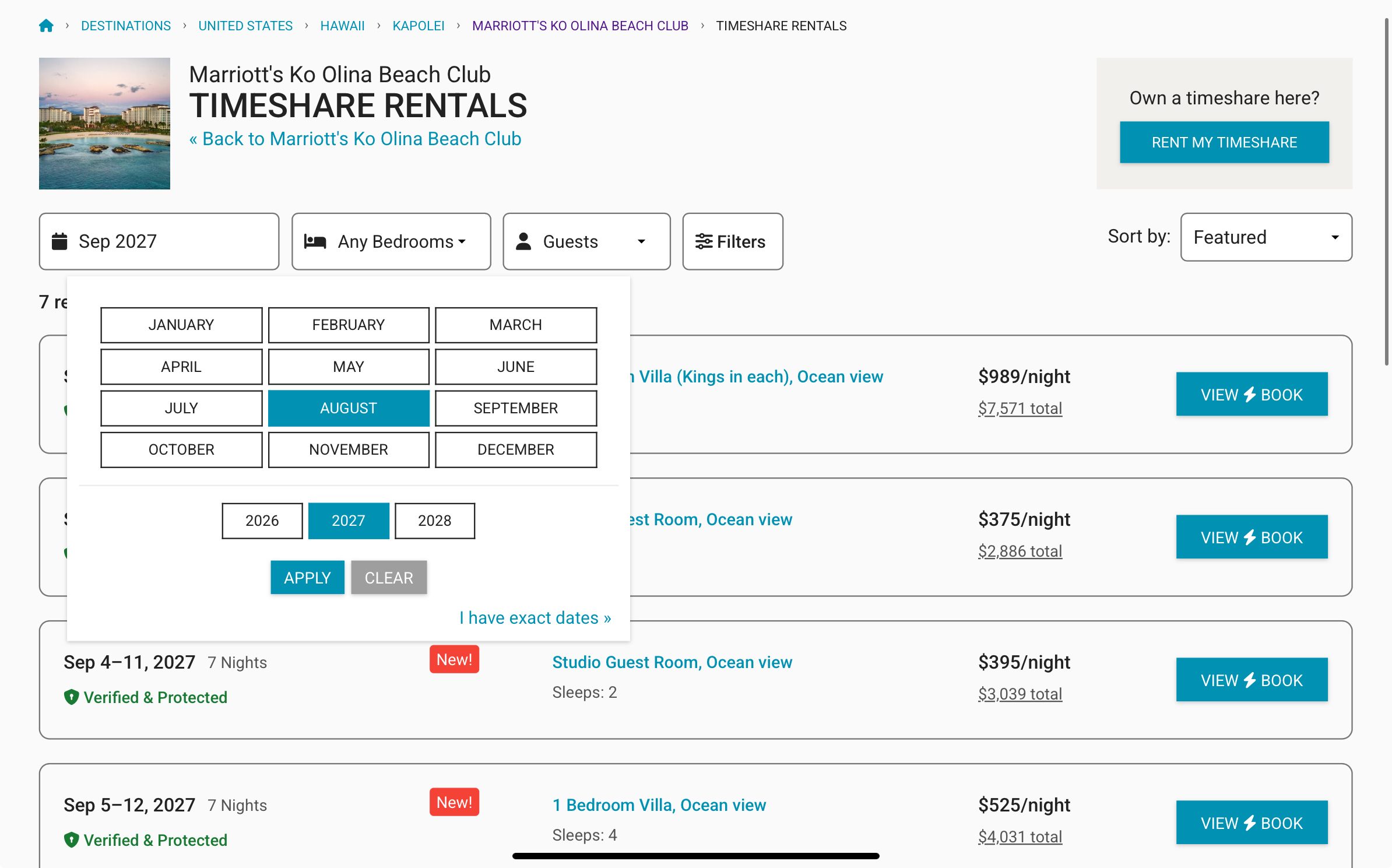
Use the filters to narrow results to your check-in dates, bedroom count, and view category.
WHY IT MATTERS
This is the actual pool of listings you'll be competing with — not the resort's full price range.
TIMESHARE PLAYBOOK
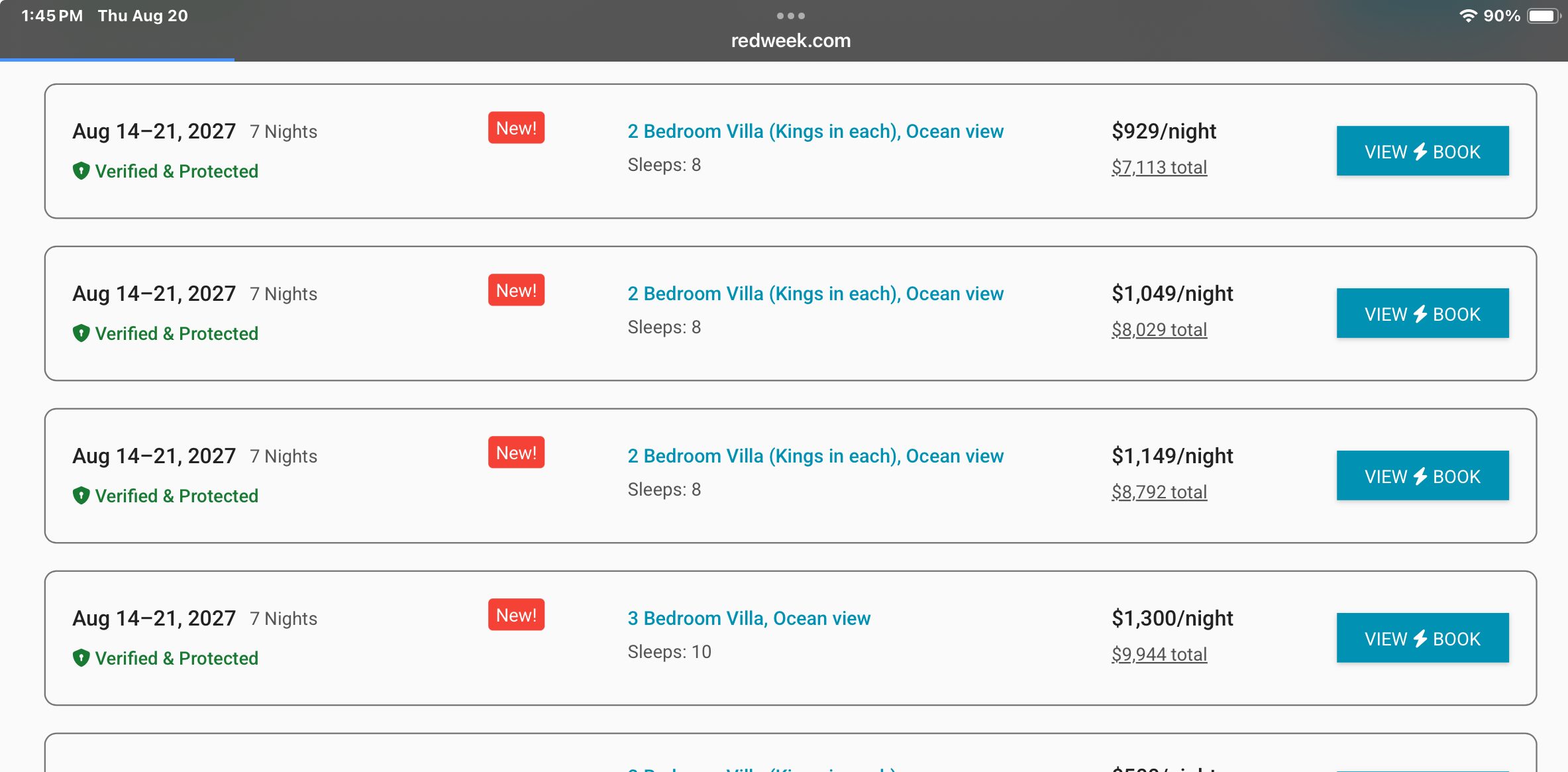
Look at several listings closest to your dates, sorted high to low, for your same unit type. This range is your current market value.
WHY IT MATTERS
Don't anchor to the highest listing — look at the cluster of prices to find where real bookings are likely to land.
TIMESHARE PLAYBOOK
Compare the lowest realistic price in your market range against your maintenance fees.
IF YOUR LOWEST MARKET COMP COVERS...
Maintenance Fees + Margin
...you have a winner. List it.
Note your number — you'll use it to set your listing price in the next tutorial.
UP NEXT
Securing & Listing Your Reservation
Next up: how to turn a held reservation into a live listing — built to convert without you fielding constant messages.
GET IT FIRST
The 15-Minute Hold Play (free PDF)
Enter your email for the quick-reference version of what you just watched, plus first access when the next walkthrough (pricing & listing) goes up.
— OR, IF YOU'RE READY NOW —
THE FULL SYSTEM
The Redweek Rental Playbook — $27
Exact pricing math, the full listing walkthrough, and the deadline checklist — timeshareplaybook.gumroad.com
Download this walkthrough as a PDF →